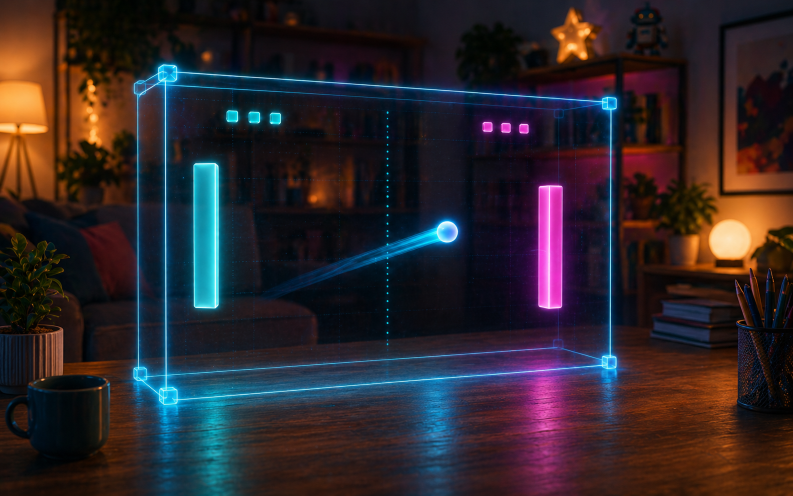
Build a retro paddle game I can play with my motion controller.
Bring your own AI assistant into Figmin XR so it can work with you live inside the app — create content, respond to your voice, orchestrate your scene, and even build spatial apps for you.
Your own AI assistant can connect to you live inside Figmin XR and actively help inside the scene.
Work with your assistant in real time instead of only chatting about ideas outside the app.
Ask your assistant to generate full Figmin XR apps for you, from quick utilities to interactive experiences.
Use your own AI assistant and computer. These features do not require a paid Figmin XR cloud service.
Talk naturally with your assistant using local speech recognition and spoken replies.
Your assistant can inspect the scene, capture views, and help based on what is actually happening in Figmin XR.
Move from idea to working scene or app much faster by giving high-level instructions in plain language.
Once connected, your assistant can do much more than answer questions — it can actively help inside Figmin XR.
Build a retro paddle game I can play with my motion controller.
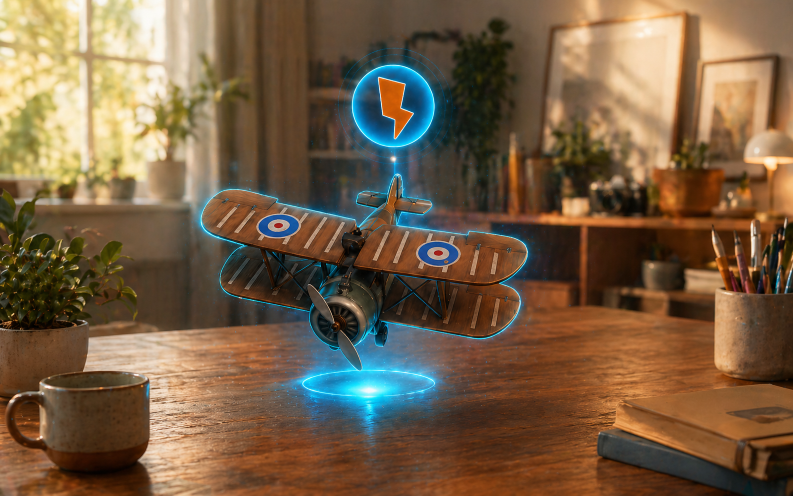
Make an RC airplane I can fly around the room.
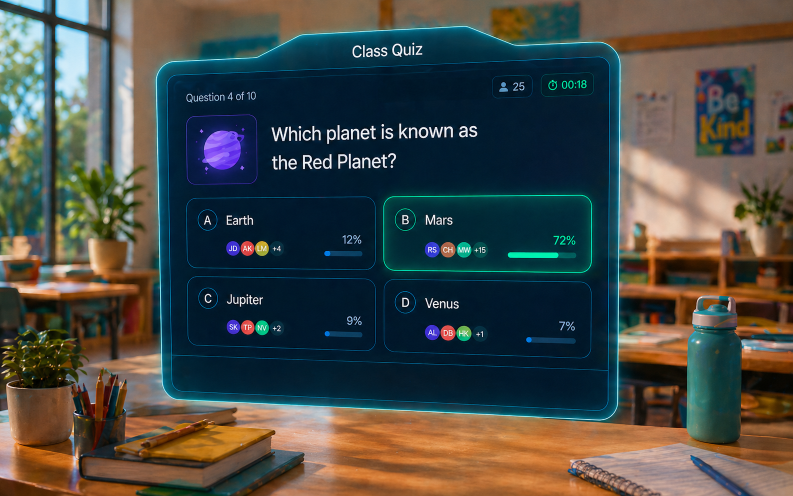
Create a multiplayer quiz panel with A, B, C, and D options.
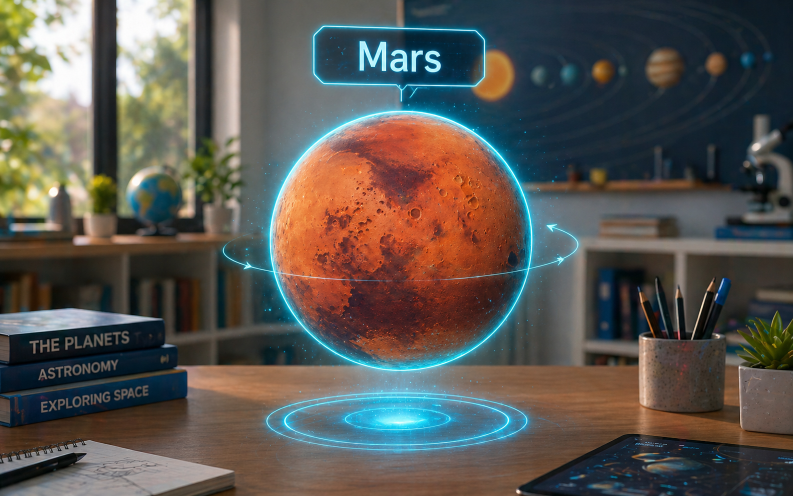
I selected this object. Add a glowing label and make it gently spin.
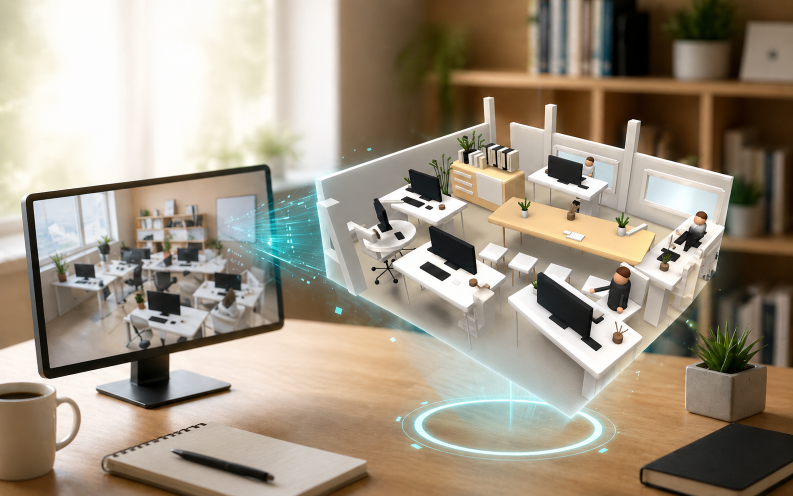
Recreate this reference photo as a small 3D scene in Figmin XR.
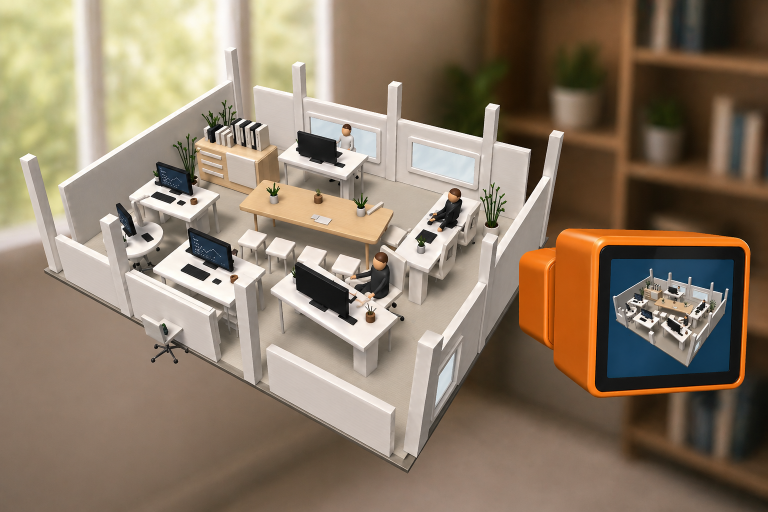
Use your agent camera to look at this area and tell me what you think.
Talk to your assistant and let it see what is happening in your scene.
Figmin XR can support a more natural conversational workflow: dictate prompts in the headset, hear spoken replies, and let your assistant use its agent camera to inspect the scene, understand what you are working on, and check the things it creates.
Figmin XR connects to your AI assistant through a small bridge that runs on your computer.
A small local bridge runs on your computer. Both Figmin XR and your AI tool connect to it, allowing the assistant to interact with Figmin XR in a live session.
The local machine can also offload heavier tasks such as speech recognition and voice generation, which makes the in-headset experience much more practical.
Do the first two steps once. After that, start the bridge whenever you want to use Figmin XR with your AI assistant.
UV is a small tool that downloads and runs Figmin XR's MCP tools.
On Windows, open Command Prompt and install UV. After it finishes, close Command Prompt before continuing.
winget install astral-sh.uvPick the AI app you want to use with Figmin XR. You can configure Codex Desktop, Claude Desktop, or both.
Open a new Codex chat and paste this prompt:
I'd like to add the Figmin XR MCP server to Codex Desktop:

uvx figmin-mcp

Could you please set that up for me?
Restart Codex Desktop after Codex finishes updating the MCP settings.
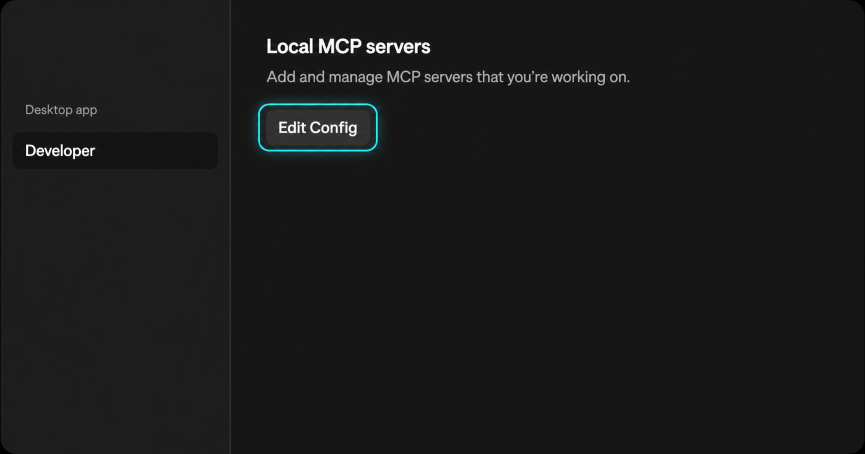
Open Claude Desktop's developer settings and add Figmin XR MCP to Claude's configuration file.
1. Click Edit Config
2. Add the Figmin XR entry
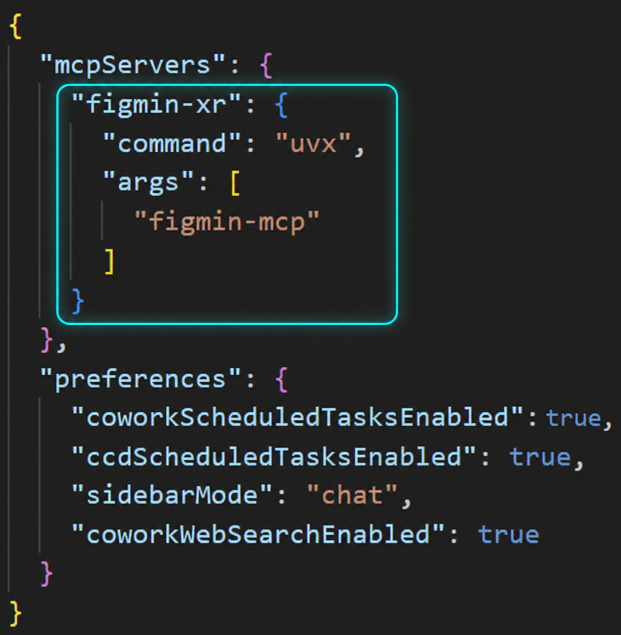
{
  "mcpServers": {
    "figmin-xr": {
      "command": "uvx",
      "args": ["figmin-mcp"]
    }
  }
}
Restart Claude Desktop after saving the config file.
When you want to work with Figmin XR over MCP, start the local bridge, connect from Figmin XR, then ask your assistant to join.
Open a new Command Prompt and run one of the bridge commands below. Keep this terminal window open while you are using Figmin XR with your AI assistant.
The first launch may take a few minutes while files are downloaded. When you see the ready message, note the address shown in your terminal.
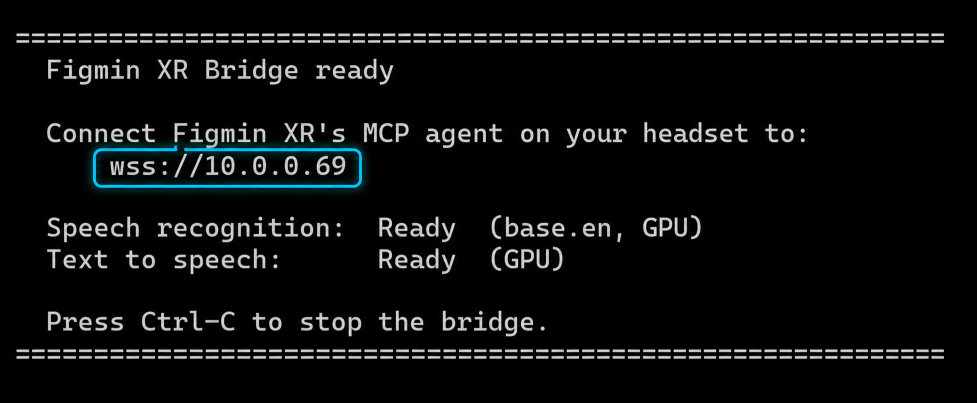
Your bridge will show your own address. Enter the address shown in your terminal, not the one in this example.
In Figmin XR, open the MCP Agent app, enter the IP address from the bridge, and press Connect. Your headset and the computer running the bridge must be on the same local network.
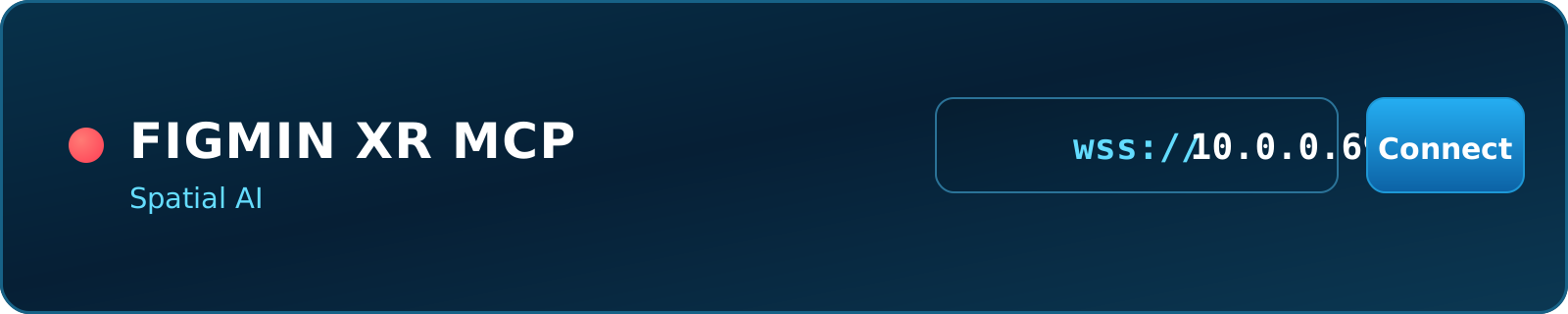
Once Figmin XR says it is connected, ask your assistant to join the session. Try the prompt below.
Please connect to Figmin XR with MCP and start a realtime chat with me.

Before we begin, please read the Figmin XR help tool thoroughly so you understand how it all works.Give your assistant the right references, examples, and app patterns so it can build more confidently inside Figmin XR.
If something does not work the first time, these are the most common places to check. If you still need help, join us on Discord.
Make sure uv installed successfully, then close and reopen your terminal before trying again.
If your AI client is not configured correctly, ask your assistant to help set up its MCP configuration.
The goal is for your AI client to be able to run uvx figmin-mcp.
Make sure the bridge is running on your PC and that Figmin XR is trying to connect to that same machine on the same local network.
If your agent is taking too long to reply, try lowering it's reasoning / effort setting.
If a chat bubble appears but the spoken reply arrives several seconds later, text to speech is probably running on your CPU. If you cannot use GPU acceleration, ask your assistant to reply without text to speech.
If your agent leaves the chat window open after it disconnects, or doesn't open it when it connects: ask it to properly announce() and leave() when doing a realtime chat.
To speak in a language other than English, open dictation and use the language button in the lower-left corner. If spoken replies are not pronounced correctly, ask your assistant to switch to a voice that supports your language.
Ask your assistant to carefully read the Figmin XR help tool, or configure your AI client with the Figmin XR agent skill file. This gives it more context before it tries to build or edit your scene.
If your assistant is building a spatial app and something is not working, open Settings (click the cog button), enable the Console toggle, reload the app, and copy any errors back to your assistant.
Close any running bridge terminal, then remove the cached bridge package with
uv cache clean figmin-bridge or uv cache clean figmin-bridge-gpu.
To remove the MCP server from your AI client, ask your assistant how to remove figmin-mcp
from that client's configuration.